How to Build a Mobile App Design Wireframe
Learn how to create a mobile app design wireframe, map UX flows, choose wireframe fidelity, and turn validated screens into React Native UI.
 Suraj
Suraj
A small team can have a promising app idea, a polished-looking welcome screen, and a working sign-up form, yet still be unsure what happens after a user taps Create account. Does the app request a permission first? What does the dashboard show when the account has no saved items? Can someone recover from a failed sign-in without losing their place? Those aren't details to leave for implementation. They're product decisions, and a mobile app design wireframe gives the team a place to make and test them before code makes changes slower.
Table of Contents
- Why Mobile App Wireframes Come Before Code
- Map the User Flow Before Drawing Screens
- Choose the Right Wireframe Fidelity
- Build and Test a Grayscale Wireframe
- Turn the Wireframe Into React Native Screens
- Map AppLighter Primitives and Navigation Patterns
- Review, Test, and Refine the Final Wireframe
Why Mobile App Wireframes Come Before Code
An attractive screen can still fail on a phone. Users might not find the main action, understand where a back button takes them, or know whether a slow request is still working. A wireframe makes these practical questions visible while the team can still change the order of screens, simplify navigation, or add a recovery path without reworking production components.
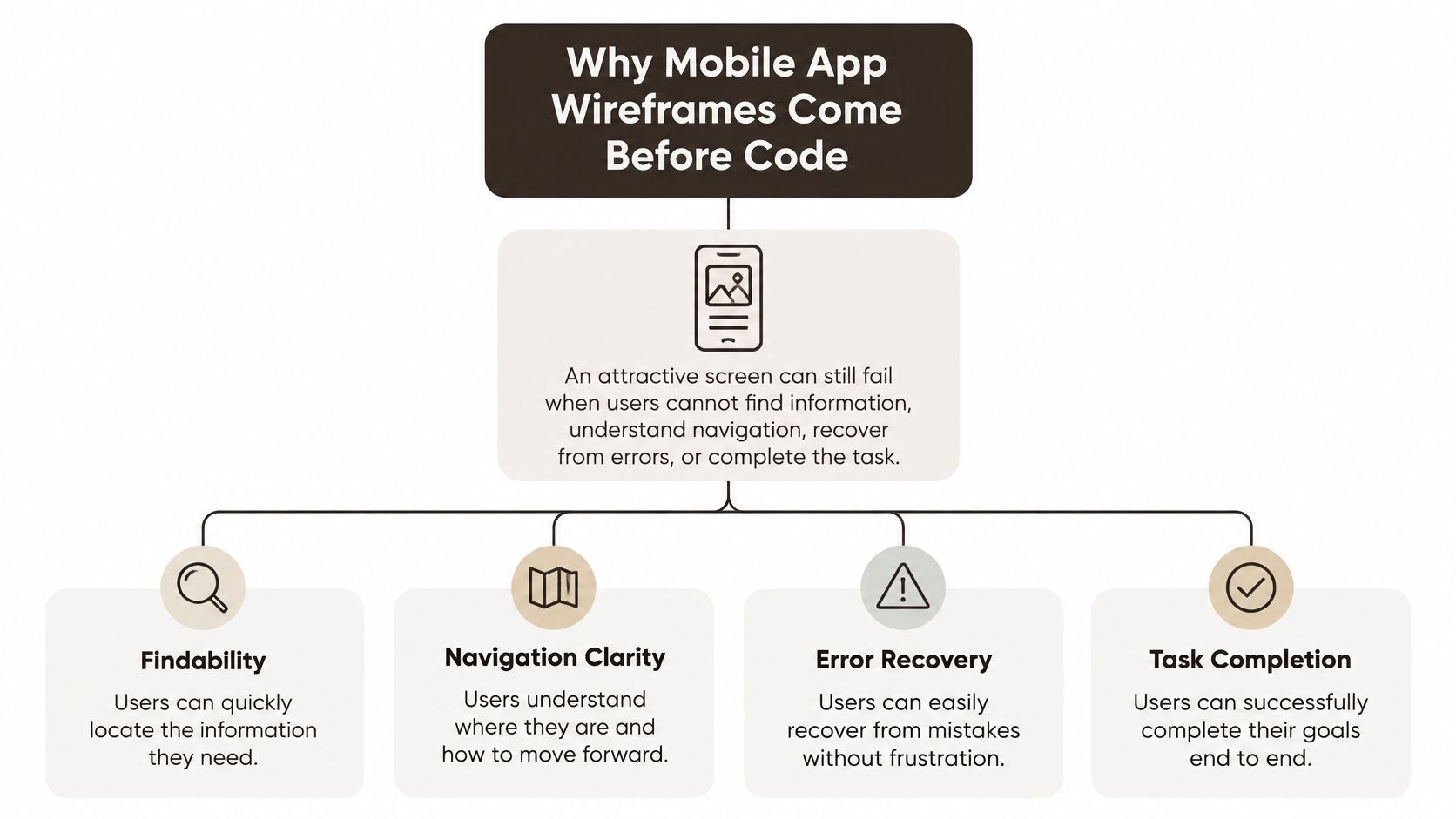 A diagram illustrating why mobile app wireframes are crucial for usability, navigation, error recovery, and task completion.
A wireframe, visual mockup, and screen specification answer different questions. The wireframe describes structure and behavior: what appears on each screen, how users move through the app, and what happens when an action succeeds or fails. The mockup develops visual choices such as color, typography, and styling. The screen specification makes the decisions actionable for engineering, including states, navigation behavior, and data dependencies.
That distinction matters when a small team is building for iOS, Android, and web. A static page can't show whether the same journey works with a mobile keyboard, a platform-specific back gesture, or a web layout. A flow-oriented wireframe gives founders, designers, and developers a shared reference before they commit to those details.
The historical usability evidence makes the case for treating mobile interaction as its own design problem. A 2009 Nielsen Norman Group study found average task success of 59% on mobile, compared with approximately 80% on personal-computer websites. Within mobile, the study also found a 16-percentage-point gap between smartphones and touch phones, reinforcing that screen constraints and input behavior can affect whether users complete tasks (Nielsen Norman Group's early mobile usability findings).
| Artifact | Primary question answered | Best time to use |
|---|---|---|
| Wireframe | Can users understand the structure and complete the task? | Before visual polish and implementation |
| Visual mockup | What should the interface look and feel like? | After the structure is clear |
| Screen specification | What behavior and states must engineering build? | During handoff and implementation planning |
For a team preparing an MVP, rapid prototyping techniques can help turn early assumptions into something people can try. The wireframe is the useful starting point: a testable map of user tasks, not a collection of screens that only looks finished.
Map the User Flow Before Drawing Screens
Start with the task, not the design tool. A flowchart on a whiteboard can expose a missing step more clearly than a polished screen can. Information architecture deserves early attention: a practitioner study found it accounted for 27.36% of reported mobile-usability concerns, the largest category among the issues examined (the practitioner study on mobile-usability concerns).
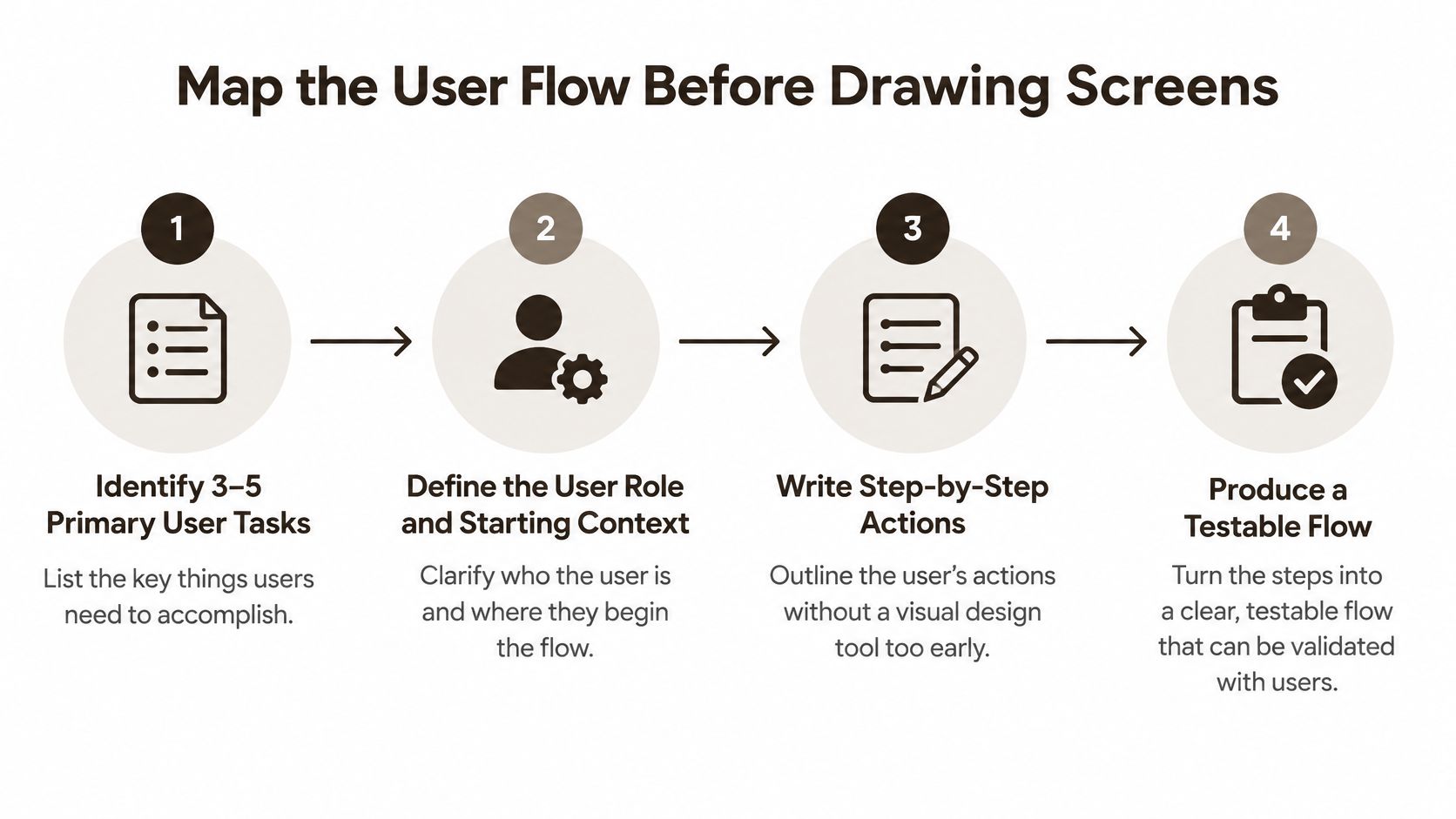 A four-step infographic illustrating the process of mapping user flows before designing mobile app wireframes.
A practical flow begins with a short task list. Choose three to five primary tasks that express what the product must let users accomplish. Write each as an outcome, such as “create an account and save the first item,” rather than as a feature label like “authentication.”
Then define who is doing the task and what they know when it begins. A new user who has just opened the app needs different guidance from a returning user following a deep link into a saved item. Those starting conditions affect entry points, onboarding, and the expected back behavior.
Turn tasks into a route-and-state map
For each task, list the minimum screens and transitions. A startup app might take a new user through Welcome → Create account → Profile setup → Dashboard → Save an item. That sequence is only the happy path. Annotate what happens when an email is invalid, the user returns to sign-in, the dashboard has no data, or a save request fails.
| Flow item | Decision to document | Why it matters before coding |
|---|---|---|
| Entry point | How the user reaches the flow | Clarifies links, launch behavior, and navigation |
| Back behavior | Where each back action returns | Prevents users from getting trapped or losing context |
| Validation | What input is checked and when | Makes feedback predictable and specific |
| Empty and loading states | What appears before or without data | Avoids blank screens and unexplained waits |
| Failure and recovery | What the user can do after an error | Keeps the journey usable when the ideal path breaks |
Treat this as a route-and-state matrix for the future Expo navigation structure. For every screen, note its purpose, the previous and next destinations, any data it needs, and its success or failure outcomes. A flow is useful when a teammate can trace the task without guessing what a button or system response means.
Practical rule: If a teammate has to ask what happens after a tap, document that behavior before building the screen.
You can sketch the flow with paper, a diagramming tool, or an interactive prototype, but don't start by tuning colors and spacing. A focused review of navigation best practices can help the team evaluate how users move through the resulting paths. The test is straightforward: can someone unfamiliar with the product explain how they would reach the task outcome and recover if it fails?
Choose the Right Wireframe Fidelity
Fidelity is a decision about what you need to learn, not a ranking of design quality. A rough layout makes it easier to discuss hierarchy and navigation without inviting a long debate about brand color. A more detailed wireframe can clarify labels, component boundaries, and interactions once the structure makes sense.
Mobile apps also benefit when the flow is designed for app-specific behavior rather than treated as a resized website. In a 2011 Nielsen Norman Group study covering 390 mobile tasks, mobile applications reached a 76% average success rate, compared with 64% for mobile-specific websites (Nielsen Norman Group's follow-up mobile usability study). That historical comparison is a reminder to plan the connected app journey, not just the appearance of individual pages.
| Fidelity | Best for | Should avoid | Typical output |
|---|---|---|---|
| Low | Testing hierarchy, sequence, and navigation | Debating visual polish or final copy | Grayscale screens with labels and connectors |
| High | Reviewing labels, component boundaries, and interaction patterns | Treating visual detail as proof the flow works | Detailed screen layouts with annotated behavior |
Escalate detail when it answers a real question
Low-fidelity work is quick to revise. Use it when the team is still deciding whether the dashboard belongs before or after profile setup, or whether a user can reach a saved item without navigating through several unrelated screens. Keep placeholders meaningful: “Recent saved items” communicates more than a row of unlabeled gray boxes.
Move to higher fidelity when a decision depends on detail. If users need to compare form labels, understand a permission explanation, or distinguish a primary action from a secondary one, the additional specificity can make feedback more useful. But polish has a cost: people may comment on colors and styling while the underlying journey still fails.
For a concise introduction to understanding wireframes, look for guidance that distinguishes structure from visual design. Then apply that distinction to the current decision. If the team can't explain what it hopes to learn from added detail, stay low-fidelity. Escalate only after the flow and hierarchy have survived review.
Build and Test a Grayscale Wireframe
Take a representative task, such as creating an account, reaching a dashboard, and saving the first item. Draw only the screens needed to complete that task or recover from a failure. Use boxes for content, clear labels for actions, and simple connectors for transitions. A grayscale layout keeps attention on structure rather than brand styling.
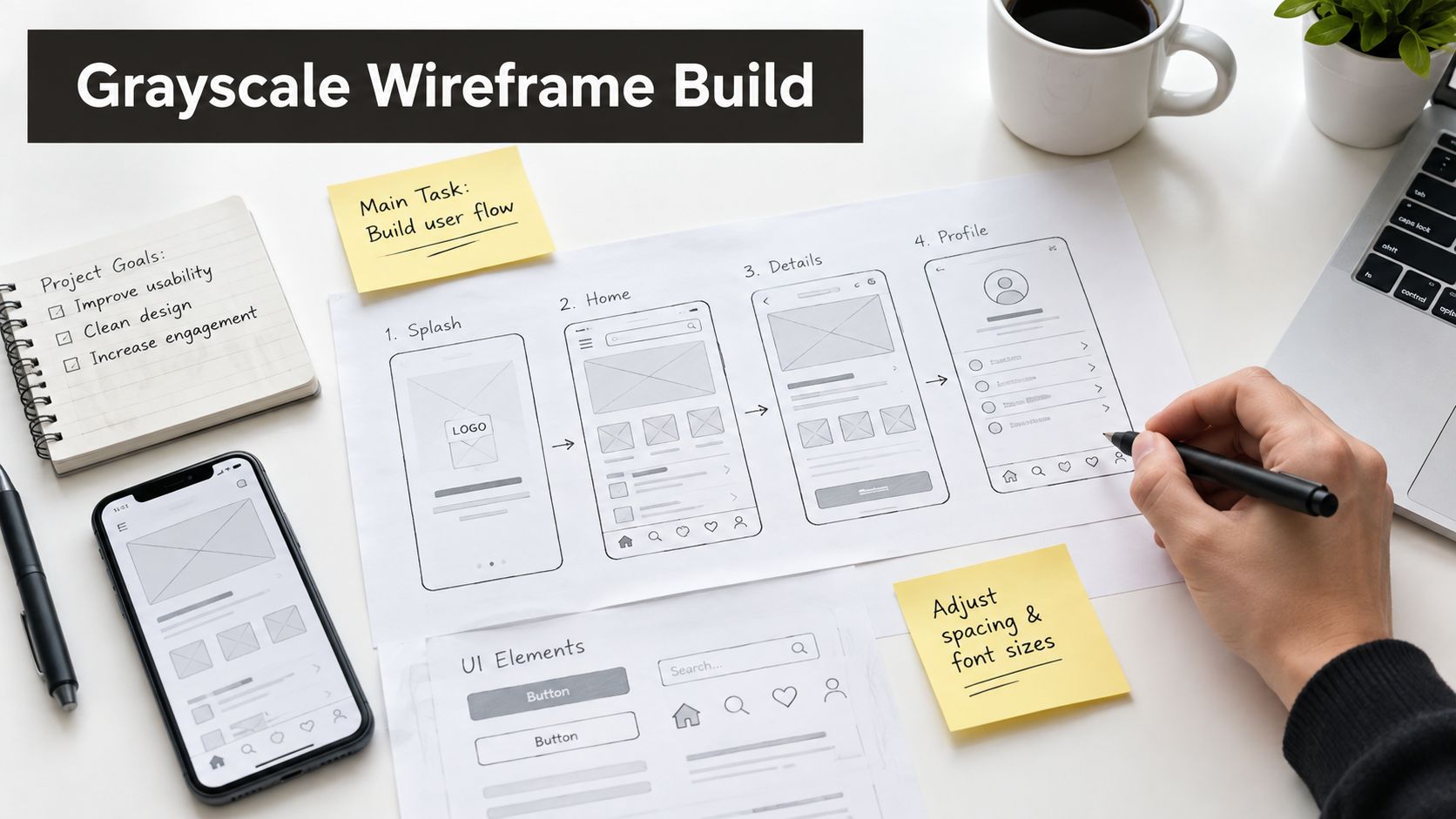 A hand sketching a mobile app user flow wireframe on paper with post-it notes and devices.
On the dashboard, make the next useful action obvious. If the app's first success is saving an item, give that action a clear place in the hierarchy and show what the user sees afterward. Annotate the tap target, destination, feedback, and any data dependency instead of relying on visual position to communicate behavior.
A wireframe should also describe what happens when the ideal sequence breaks. Add notes for validation errors, loading feedback, empty results, offline behavior, permissions, and destructive actions. For example, if a save request fails, does the app preserve the item draft? Can the user retry? A box labeled “error” doesn't settle those decisions, but an annotation can make the intended recovery path testable.
| State | Wireframe annotation | React Native handoff note |
|---|---|---|
| Loading | Show progress and keep the current task understandable | Identify which request is pending and what remains interactive |
| Empty | Explain why no saved items appear and offer a next action | Specify the empty-data condition and the available action |
| Validation error | Place a clear message beside the relevant input | Define when validation runs and where feedback appears |
| Offline | State whether content is unavailable or can be retried | Document network-dependent behavior and recovery |
| Destructive action | Show confirmation and explain the consequence | Define confirmation, cancellation, and the final outcome |
Make the prototype interactive enough to follow the flow. A linked prototype can show screen transitions and tap responses without adding production logic. That lets a reviewer test the structure while developers still have room to change the route or state model.
Test the task, not the artwork
Recruit people who resemble the intended users, give them realistic scenarios, and avoid coaching them through the interface. Record unassisted completion, wrong taps, recovery attempts, time-on-task, and points of verbal confusion. A mobile usability study involving 838 respondents rated efficiency as the strongest usability influence, followed by cognitive load and errors (the mobile UI/UX usability discussion). That makes speed, clarity, and error prevention concrete review concerns, not just polish.
After a test, fix the highest-risk breakdown first. If users can't find the save action, changing button styling may not be enough; the dashboard hierarchy may need revision. Retest that journey before spending time refining screens whose structure already works.
Turn the Wireframe Into React Native Screens
A validated wireframe should make the engineering handoff more specific, not create another layer of interpretation. Translate each screen into a route definition, then list what it displays, what data it needs, which shared components it uses, and how the user leaves it. Keep layout structure separate from screen-specific content and behavior so the team can reuse patterns without hiding important differences.
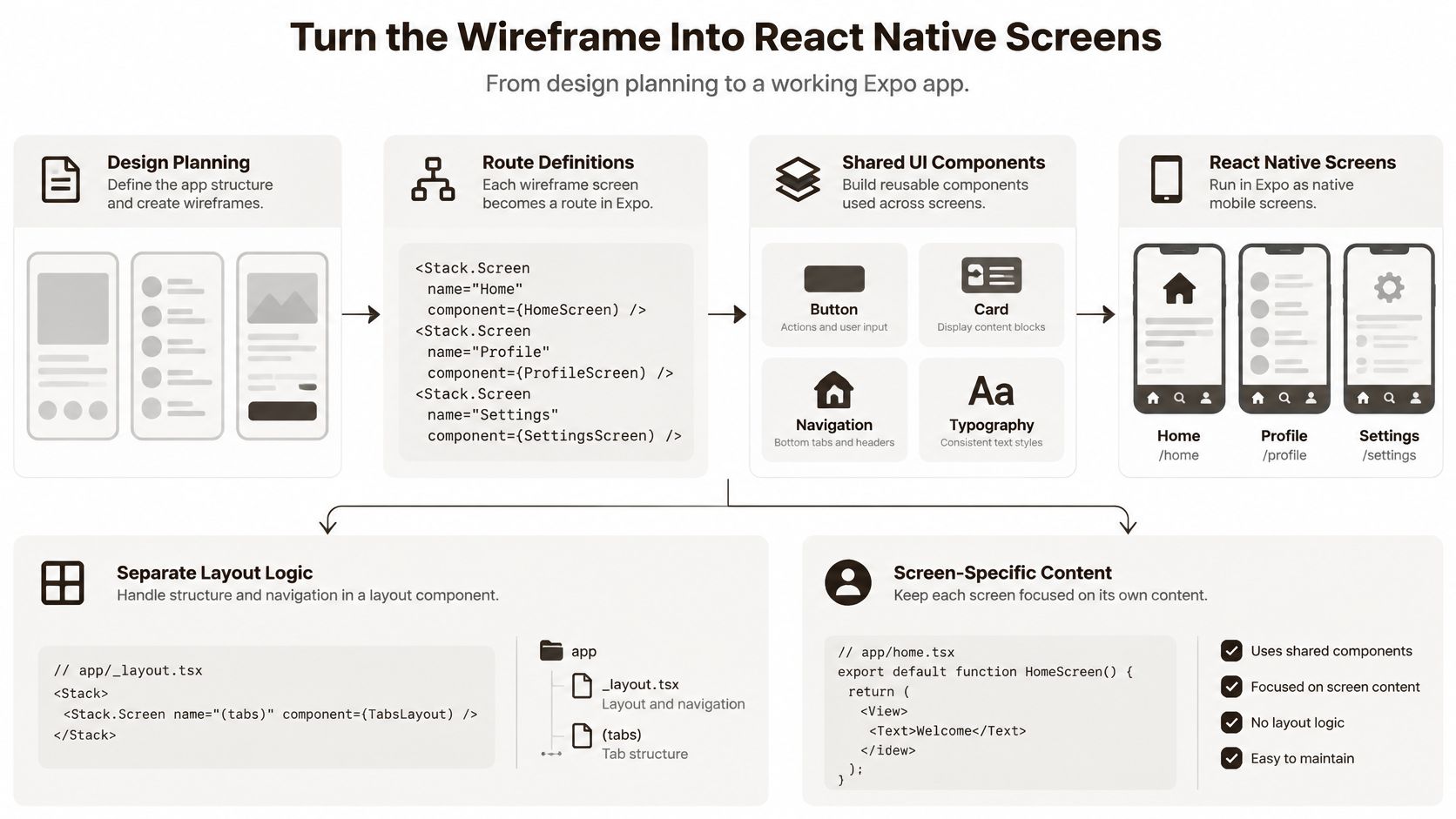 A diagram illustrating the process of turning mobile app design wireframes into functional React Native screens.
A 2025 design-industry discussion reported that 92% of designers and 91% of developers still considered handoff broken; it also associated design errors and information lost during handoff with 68% of project rework costs (the discussion of mobile app design handoff). Clear route and state documentation helps a small team make those decisions explicit instead of asking an implementer to infer them from screen images.
| Wireframe element | Engineering decision | Handoff artifact |
|---|---|---|
| Create-account screen | Which inputs, validation rules, and submit behavior apply? | Screen specification and validation notes |
| Submit action | How are pending, success, and failure represented? | State matrix and acceptance criteria |
| Back action | Does it return to onboarding, sign-in, or the previous route? | Navigation behavior note |
| Dashboard content | Which data source populates the screen? | Dependency and empty-state notes |
| Responsive layout | What changes across iOS, Android, and web? | Platform-specific behavior notes |
Specify route and state behavior
For an account-creation journey, the wireframe might show the user entering details, submitting the form, and arriving at a dashboard after successful authentication. Engineering still needs to know how invalid input is presented, what appears while submission is pending, and where a user lands after a failure. In React Native, those outcomes become explicit screen states and conditional rendering, not undocumented assumptions.
Document keyboard behavior and safe areas alongside the layout. The team should know whether the keyboard obscures the submit action, whether content can scroll, and whether web needs a responsive arrangement that differs from handheld screens. If a platform exception changes navigation or interaction, write it down before handoff rather than assuming the same gesture behaves everywhere.
For each route, record its purpose, entry points, navigation behavior, data dependencies, and expected outcomes. Then associate shared UI components with the decisions they support, such as consistent input feedback or a reusable loading treatment. Keep the contract focused on user-visible behavior; don't lock the team into undocumented component names or a specific implementation detail that hasn't been decided.
Map AppLighter Primitives and Navigation Patterns
A starter kit can reduce setup work, but it can't decide whether your app should use tabs, a stack, or a modal for a particular task. Make that choice from the journey the wireframe describes. A stack suits a sequence where users move into a detail view and return to the prior context. Tabs fit repeated top-level destinations. A modal works for a focused task that users should complete or dismiss without leaving the underlying screen.
AppLighter is an opinionated Expo and React Native starter kit with authentication, navigation, state management, and AI integrations already wired together, plus Vibecode DB, a Supabase adapter, and a Hono/TypeScript edge-ready API layer. Those foundations speed up implementation. The team still has to map its own flows and state requirements onto them.
| Wireframe component or flow | Primitive category | Navigation pattern to consider | Decision question |
|---|---|---|---|
| Sign-in and registration | Authentication UI and form state | Unauthenticated stack | Where does a successful sign-in land? |
| Onboarding | Screen sequence and progress | Stack or guided flow | Can users return and edit earlier choices? |
| Dashboard and destinations | Shared layout and data display | Tabs or a central screen with nested routes | Which destinations need repeated access? |
| Item details | Content and actions | Nested stack screen | Should back return to the same list position? |
| Create or edit item | Form and validation state | Screen or modal | Is this a focused task or a full journey? |
| AI-assisted action | Input, request, and response states | Screen or modal | How are pending, failure, and retry handled? |
Keep primitives in service of the flow
Reach for a shared component when the behavior repeats, not because two screens look vaguely alike. Forms may share input treatment while still requiring different validation rules. A loading indicator can be reused, but each screen should say what is loading and whether the user can cancel or continue.
Authentication transitions deserve particular care. Decide what happens when a signed-out user opens a protected destination, where they land after signing in, and whether their intended destination is preserved. For a nested flow, document how back behavior works from both the navigation stack and any visible controls. I've seen this gap surface late in builds: the wireframe showed a sign-in screen, but nobody specified where a deep-linked user ends up afterward, so engineering shipped a guess.
The same principle applies if you use a different UI library or starter kit. A comparison of React Native UI libraries can inform the component choice, but the wireframe should still specify the behavior each component needs to support. Pick patterns based on the user's task, test them in the prototype, and hand engineering a clear reason for each route.
Review, Test, and Refine the Final Wireframe
Before the team starts building screens, review the complete journey rather than approving one attractive frame at a time. Trace the user from entry to outcome, then check every point where the app waits, has no data, rejects input, loses connectivity, requests permission, or asks someone to confirm a destructive action. A screen that looks clear in isolation may still leave the user stranded between steps.
Accessibility belongs in that review. Annotate reading and focus order, text scaling, captions where relevant, alternative navigation, and how validation feedback is announced. A 2025 evaluation of 50 popular iOS and Android apps found that 72% of tested user journeys produced Poor or Failing accessibility experiences, while only two apps achieved a Great rating (the accessibility evaluation of popular apps). Planning these behaviors in the wireframe makes them part of the journey instead of a late visual check.
Use a clear handoff gate
Run the complete prototype with representative users and watch whether they can finish the task without prompting. Note where they hesitate, tap the wrong control, or fail to recover. Use completion and observed recovery behavior to decide whether the structure is ready; satisfaction and visual polish are useful signals, but they can't replace evidence that the task works.
Prepare a handoff package that gives engineering decisions to build rather than puzzles to solve:
- Flow map: Tasks, entry points, destinations, and back behavior.
- Screen specifications: Purpose, hierarchy, labels, and primary actions.
- State matrix: Loading, empty, validation, offline, success, and failure behavior.
- Route definitions: Navigation relationships and expected outcomes.
- Component decisions: Shared patterns and any screen-specific exceptions.
- Open questions: Unresolved product or platform choices, with an owner for each.
A practical mobile app design wireframe becomes an executable contract when the team can trace a user task from the first screen through success and recovery, then map each decision to a route, component, or state. If a handoff still leaves developers guessing, revise the contract before implementation rather than rebuilding the information architecture inside the codebase.
AppLighter provides an Expo and React Native starter kit with authentication, navigation, state management, and AI integrations already configured. If you're turning a validated mobile app design wireframe into a working app, visit AppLighter to explore the starter foundation.