React Native Login Screen Template: Build and Customize
Learn how to use a React Native login screen template for Expo. Covers setup, styling, auth integration, accessibility, and testing for production apps.
 Sanket
You've found a React Native login screen template that looks polished, added the logo, adjusted the colors, and connected the button to an API. Then the first real user signs in with a screen reader, rotates the device while the keyboard is open, resumes an expired session, or taps the button repeatedly during a slow network request. The attractive form is still there, but the production problem has only just started.
A reliable login experience is a small authentication system, not a pair of inputs. It must protect sessions, support platform conventions, explain failures clearly, restore accounts safely, and keep working when passkeys, biometrics, links, or networks fail. The visual layer matters, but it should sit on top of a deliberate state model and a backend that remains authoritative.
Table of Contents
- Why Cross-Platform Login Templates Matter
- Setting Up Your React Native Login Flow
- Securing the Password Entry Experience
- Handling the Full Account Lifecycle
- Building Accessible and Error-Resilient Interfaces
- Starter Kits Versus Building From Scratch
- Final Checklist for Production Readiness
Why Cross-Platform Login Templates Matter
A login form seems simple until it runs on the devices your users carry. StatCounter's worldwide mobile operating-system data reports Android at 69.17% of mobile usage and iOS at 30.81%, with the remaining operating systems each contributing only about 0.01% (worldwide mobile operating-system data from StatCounter). That is roughly a 2.25-to-1 Android-to-iOS split, so a reusable React Native login screen template shouldn't inherit only Android or only iOS assumptions.
The shared interface still needs platform-aware behavior. Keyboard avoidance, safe-area insets, text-field rendering, password-manager suggestions, biometric prompts, and navigation transitions can differ between platforms even when the screen uses the same React components. A consistent brand shouldn't mean identical behavior at every layer. It means users recognize the product while the implementation respects the operating system.
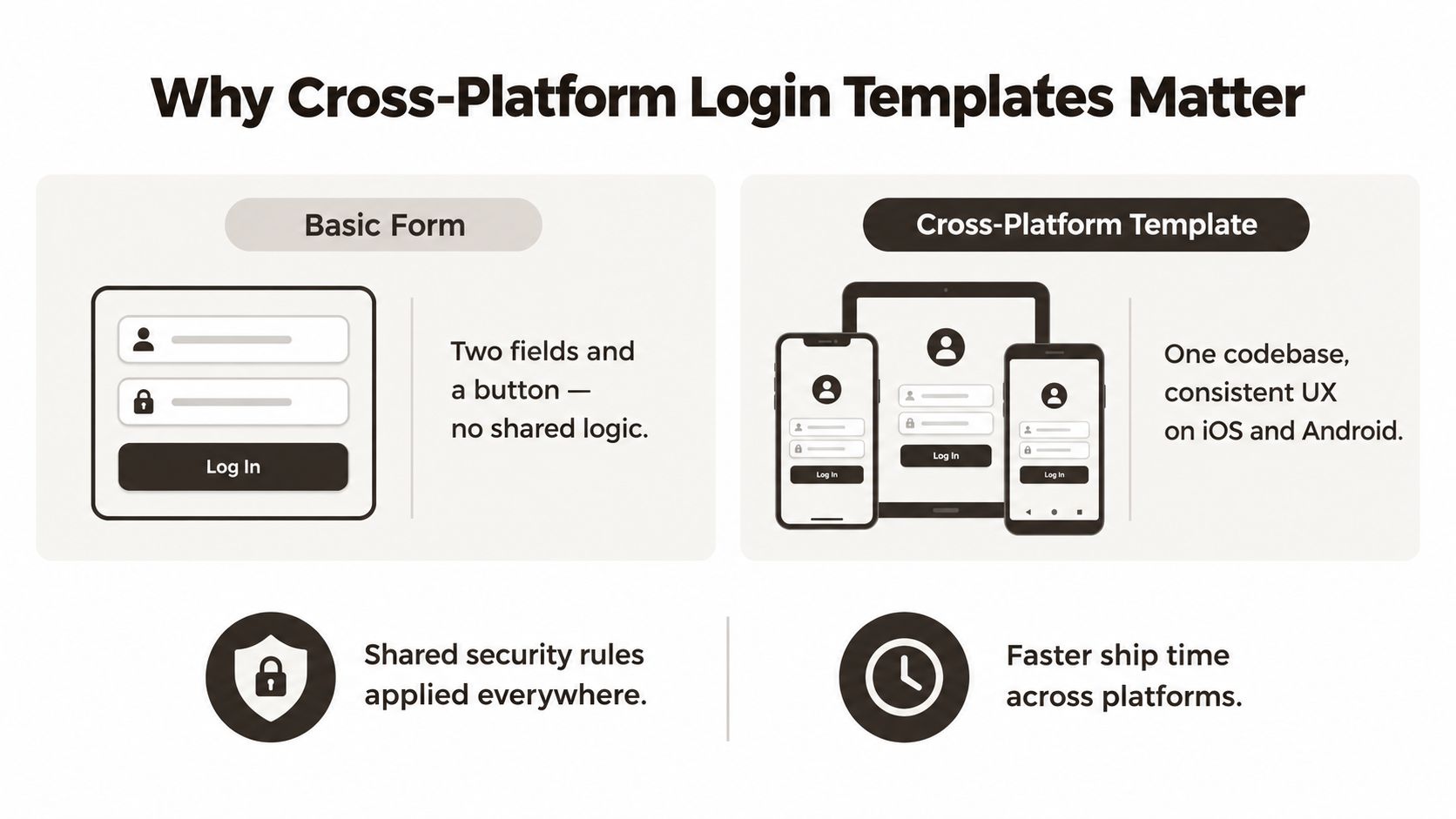 A comparison graphic showing a basic login form versus a consistent cross-platform login template for apps.
A template needs more than reusable JSX
React Native's open-source availability, announced by Facebook in March 2015, established a practical cross-platform approach for building mobile interfaces with JavaScript and React. That history matters because authentication repeats across nearly every product. Teams need credential entry, registration, recovery, session restoration, and protected navigation whether they're building an MVP, an internal tool, or a consumer app.
A useful template separates presentation from authentication services. The form can own labels, focus, validation feedback, and loading indicators, while an authentication layer handles remote credentials, token persistence, refresh, logout, and route protection. This separation lets you replace Supabase Auth, Firebase Auth, or a custom API without rewriting the screen.
Practical rule: Treat the login screen as the front door to an account lifecycle, not as a standalone page.
Represent the flow explicitly with states such as idle, submitting, authenticated, verification-required, and error. That structure prevents the common mistake of using a local isLoggedIn boolean as proof that the server has authorized the device. For a broader look at reusable mobile foundations, the mobile app template guide provides useful context, but the same principle applies here: shared code saves duplicated interface work only when platform differences remain deliberate.
Setting Up Your React Native Login Flow
Start with the smallest architecture that can enforce the right boundaries. In an Expo application, keep the screen component responsible for user interaction and place API calls, token storage, session hydration, and route decisions in an authentication provider or service module. Expo Router works well for this arrangement because public and protected routes can be organized separately, but the router must react to verified session state rather than a value left in memory.
Build the state machine before the styling
A practical initial flow looks like this:
- Hydrate the session. On cold start, read the stored device token from secure storage and ask the backend whether it remains valid. Render a loading gate during this check so protected content doesn't flash before verification.
- Accept credentials. Validate obvious input issues locally, then send credentials over HTTPS. Local validation improves feedback, but it isn't authentication.
- Submit once. Set the state to
submitting, disable the button, and ignore duplicate taps until the request resolves. - Resolve the response. Move to
authenticated,verification-required, orerrorbased on the server response. Move on only after the session has been stored and the authenticated state is available to the protected tree. - Recover deliberately. If a refresh token expires or the server revokes the session, clear local session data and return to a signed-out route with an understandable message.
OWASP advises never storing passwords on the device, using revocable device-specific tokens, enforcing authorization on every request, and ensuring session identifiers are random, unpredictable, securely transmitted, and invalidated after logout or expiry (OWASP Mobile Application Security Cheat Sheet). In practice, that means ordinary unencrypted storage isn't an appropriate place for credentials or sensitive tokens. Your API must reject missing, invalid, expired, or insufficiently privileged sessions even if the client has successfully moved through its flows.
Keep responsibilities visible
Avoid burying authentication inside a button handler. A service such as auth.signIn(credentials) should return a typed result, while the provider owns session state and the screen renders that state. This makes it easier to test offline behavior, revoked sessions, concurrent calls, and logout from another device.
The choice between frameworks also affects project constraints, native modules, and team familiarity. A practical Flutter vs React Native analysis can help teams compare those trade-offs before committing to a shared mobile stack. Once React Native is selected, document which parts are cross-platform and which parts intentionally use platform-specific code.
For a more complete route and session model, the React Native authentication flow guide is a useful reference point. The key implementation decision remains unchanged: a client can display a state, but only the server can authorize access.
Securing the Password Entry Experience
A password field has two jobs that can conflict. It should help legitimate users enter a long, memorable secret without friction, while the backend must resist automated guessing and avoid leaking account information through its responses.
 A person holds a smartphone with a keyboard overlay visible, featuring the text Secure Every Keystroke.
Let users paste and use password managers. Support long passphrases, reject commonly used or compromised passwords during creation, and avoid arbitrary composition rules that force users into predictable substitutions. The login screen itself shouldn't try to judge whether a password is secure. It should send the attempt safely and present a clear result.
NIST identifies rate limiting as the primary defense against online guessing and says verifiers should limit consecutive failed attempts. Its implementation guidance explains that allowing 100 guesses against a secret with roughly 20 bits of entropy leaves an attacker with approximately a 1-in-10,000 chance of success (NIST Digital Identity Guidelines). The authoritative failure counter belongs on the API, not in React state, because reinstalling the app or changing client-side values mustn't reset protection.
Make failures safe and understandable
Return a generic response for invalid credentials. Don't reveal whether an email exists, and don't let timing or copy create an account-enumeration signal. During a request, disable repeated submissions. After repeated failures, apply server-controlled backoff and show a cooldown message that helps a real user understand why another attempt isn't immediately available.
Test the behavior instead of trusting the appearance:
- Zero failures: Confirm a valid login remains responsive and doesn't show a warning prematurely.
- Repeated failures: Exercise five, ten, and one hundred failed attempts, then verify the API applies its policy.
- Distributed attempts: Check that changing client state or reinstalling the app doesn't bypass server-side controls.
- Recovery: Verify that a valid login can succeed after the appropriate cooldown or recovery process.
- Error copy: Confirm invalid credentials, unavailable services, and offline mode produce distinct but non-revealing messages.
Biometrics should renew an existing device session rather than replace server authorization. Store only the revocable token and use the operating system's protected credential mechanisms. Guidance on adding this layer appears in React Native biometric authentication, but the important boundary is that a successful biometric check doesn't grant access to an API by itself.
The following material is useful when reviewing how authentication behavior feels in practice, especially around input, feedback, and interruption:
Handling the Full Account Lifecycle
Most login templates stop when the button changes to a spinner. Production accounts don't. Users enroll passkeys, replace phones, lose access to email, open an expired recovery link, revoke a device, and return to an app after a refresh token has been invalidated.
Passkeys deserve a first-class place in the design. The FIDO Alliance reported that 55–60% of passkey adoption occurs on mobile, compared with about 20% on desktop, and reported an average 93% passkey sign-in success rate alongside a 73% reduction in login time (FIDO Authenticate 2025 passkey findings). Those figures support offering passwordless authentication where the account and platform support it, but they don't justify removing every fallback.
Design the unhappy paths first
A resilient account flow defines what happens when the preferred method fails:
- A passkey prompt is cancelled, unavailable, or associated with another device.
- A biometric check fails repeatedly or the user changes device security settings.
- A recovery link has expired or has already been used.
- A session is revoked remotely while the app is open.
- A user needs to enroll a new device without automatically trusting it.
- A verification step is required after credentials are accepted.
Order the fallback paths so users aren't trapped. A passkey failure can return to a clearly labeled password or recovery option. A lost password can lead to account recovery without implying that an email address exists. A signed-out state should explain what happened and preserve enough context for the user to continue without repeating unnecessary work.
The implementation should also distinguish enrollment from authentication. Enrollment needs an authenticated, recently verified session and an explicit confirmation step. Authentication needs a safe response when the credential isn't available. Treating both as a single “continue” action makes recovery logic difficult to audit and confusing to localize.
Cross-platform testing matters here because passkeys don't behave identically across browsers, credential types, consent flows, and error surfaces. Keep the account model server-side, document the platform-specific branches, and make every branch reachable from the UI without relying on hidden gestures or an unannounced automatic redirect.
A passwordless interface can be faster and less burdensome for many users, but the product still needs a recovery path that people understand. The strongest React Native login screen template is therefore not the one with the fewest visible fields. It's the one that keeps account ownership recoverable when the preferred authentication method breaks.
Building Accessible and Error-Resilient Interfaces
Accessibility and error recovery belong in the same design conversation because a login failure is only useful if the user can identify it and act on it. A field without a semantic label, an error communicated only through color, or focus left behind on a failed input can turn a correct backend response into a blocked journey.
Give every input a meaningful accessible label and, where useful, a hint that explains the expected format. Keep focus order aligned with the visual order. Make the password visibility control reachable by keyboard and screen reader users, and announce validation errors rather than placing them in a message that assistive technology never reads.
Test the interface under real constraints
Dynamic text sizing can change the height of the form enough to expose hidden assumptions. Use a scrollable layout, test large text settings, and avoid fixed-height containers around the credential fields. Safe-area handling should work with both compact and tall device layouts, while keyboard avoidance should keep the active field and submit action reachable.
Contrast and state design need equal attention. Error, disabled, focused, and loading states should remain distinguishable without color alone. Localized copy can expand, so buttons and error containers need to tolerate longer strings rather than clipping or shifting the primary action off screen.
Create a test matrix that includes:
- Invalid credentials: Announce the generic error and move focus to a useful recovery point.
- Rate limits: Explain the cooldown without exposing account existence.
- Expired links: Offer a route to request a new link.
- Offline mode: State that the request couldn't be completed and avoid pretending the credentials were wrong.
- Interrupted biometrics: Return users to an explicit alternate method.
- Screen readers and keyboards: Verify labels, hints, focus order, and activation behavior on iOS and Android.
- Dynamic type and contrast: Confirm the complete form remains usable at enlarged text settings and high-contrast configurations.
Empirical research reports cross-browser inconsistencies involving credential reuse, consent handling, and error messages in passkey implementations (research on passkey interoperability and error behavior). That makes clear recovery copy part of the authentication design, not a final content pass.
A production error is a navigational problem. Tell users what happened, preserve their orientation, and offer the next valid action.
The differentiator isn't the number of providers in the login screen. It's whether someone can recover independently when the ideal path fails.
Starter Kits Versus Building From Scratch
A starter kit trades some architectural freedom for an existing set of decisions. A custom build gives you control over every boundary, but your team also owns the integration details, route protection, session restoration, accessibility states, and security review from the beginning.
AppLighter is one option in this category. It provides an Expo and React Native foundation with Vibecode DB and a Supabase adapter, a Hono and TypeScript API layer, authentication, navigation, state management, and AI-assisted development integrations. That can shorten the distance between a visual login screen and a connected application, but you still need to inspect its token handling, customize its recovery paths, and test its behavior against your backend requirements.
| Factor | AppLighter Starter Kit | Building From Scratch |
|---|---|---|
| Initial setup | Preconfigured Expo, navigation, state, and authentication foundations | Every package, route, and service boundary is selected and wired by the team |
| Authentication | Existing scaffolding can provide a starting point for auth screens and protected routes | Full control over providers, token lifecycle, recovery, and backend contracts |
| Security review | Review the supplied implementation, then adapt and test it for your threat model | Establish policies, storage, invalidation, and tests before feature work expands |
| Flexibility | Opinionated structure may require adapting conventions | Maximum control over architecture and dependencies |
| Delivery pressure | Useful for MVPs, prototypes, agencies, and teams that want a working foundation | Better suited to unusual requirements or teams with dedicated platform expertise |
| Long-term ownership | You own customization and updates after adopting the structure | You own every maintenance decision from the first commit |
The right choice depends on where the risk sits. A team with unusual identity requirements may prefer a custom flow so every state matches its domain. A small product team may prefer a maintained foundation, provided it treats the starter as source code to audit rather than a security certificate.
Don't choose based on the number of screens in the preview. Choose based on whether the implementation exposes its authentication boundaries, supports accessible failures, and lets you replace assumptions without rewriting the whole app.
Final Checklist for Production Readiness
A login screen is ready to ship when the protected API agrees with the UI under adverse conditions. Start with cold launch: hydrate the stored session, hold navigation behind a loading gate, and confirm an expired token doesn't reveal protected content. Then test offline login, slow responses, concurrent submissions, revoked-token requests, expired sessions, and logout from multiple devices.
Use the following quality gate before release:
- Session integrity: Protected endpoints reject missing, invalid, expired, and insufficiently privileged sessions.
- Storage safety: The app never persists raw passwords and uses protected storage for revocable device tokens.
- Navigation correctness: Public, loading, verification, authenticated, and signed-out states can't overlap.
- Request behavior: Duplicate taps are ignored, generic credential errors are returned, and server-side throttling remains authoritative.
- Recovery coverage: Password reset, passkey fallback, device changes, expired links, and revoked sessions each have a visible next action.
- Accessibility: Labels, hints, focus order, announcements, dynamic text, contrast, keyboard use, and localized messages work on both mobile platforms.
- Operational testing: Logs and monitoring distinguish authentication failures from network failures without recording sensitive credentials or tokens.
Don't define success as “the app reached the home screen.” Define it as a protected request that succeeds only with a valid authorized session, while every invalid path returns the user to a safe and understandable state. If your template passes that standard on the devices and services you support, its visual polish becomes an asset instead of a distraction from unfinished infrastructure.
Use AppLighter as a starting point when you want an Expo-based mobile foundation with authentication, navigation, state management, and API structure already connected. Review and adapt its login, recovery, accessibility, and session behavior against the production checklist before shipping your app.