Google Sheets Replace A Practical Guide to Data Transformation
Master Google Sheets replace functions. Learn to use Find and Replace, formulas like REGEXREPLACE, and Apps Script for efficient data cleaning and bulk updates.
 Sanket
Got a messy dataset in Google Sheets? We've all been there. Your quickest and easiest first move is the classic 'Find and Replace' tool. Just hit Ctrl+H (or Cmd+H on a Mac), and you're ready to tackle straightforward, manual fixes across your data. This is the go-to for one-off changes or standardizing information without needing any fancy formulas.
Getting Started with Find and Replace
When you need to clean up your data, 'Find and Replace' is your best friend. It’s perfect for those immediate, simple text substitutions that pop up all the time.
Let's say you're getting your inventory ready for the new fiscal year and have to update thousands of product codes from 'SKU23-' to 'SKU24-'. Trying to do that by hand would be a nightmare and an open invitation for typos. With this tool, it’s a job that takes seconds, not hours.
The real magic, though, is in the details. You can get incredibly precise to make sure you don't accidentally wreck your sheet. These settings are your safety net, ensuring you only change exactly what you intend to.
Fine-Tuning Your Replacements
- Match case: This makes your search case-sensitive. It's a lifesaver when you need to replace "ca" (as in California) with "CA" but don't want to mess up words like "category."
- Match entire cell contents: This setting prevents partial matches. If you search for "Manager" with this box checked, it will only find cells that contain only "Manager," skipping over cells with "Project Manager."
- Search using regular expressions: This is where the power users live. It lets you search for patterns, not just specific text. We’ll dive into this a bit later.
- Also search within formulas: This one is powerful but dangerous. It lets you change text inside your formulas. Be very careful here—one wrong move can break your entire spreadsheet's logic.
My biggest tip: Always define your search area first. Before you even open the 'Find and Replace' box, select the specific cells or columns you want to change. This simple habit prevents accidental changes across your entire sheet or workbook and gives you total control.
Here’s a look at the 'Find and Replace' dialog box. You can see the fields for what to find, what to replace it with, and all the options to narrow your search.
 Person using a laptop with a spreadsheet displaying "Quick Find & Replace" on the screen.
This simple tool highlights why so many teams run on Google Sheets. By 2025, an estimated 42 million professionals are expected to rely on it for their daily work, and its adoption in businesses grew 9.3% year-over-year. Getting a handle on Google Sheets is essential for modern data workflows, and mastering this fundamental tool is your first step toward becoming a data pro on a platform built for teamwork.
Choosing Between REPLACE, SUBSTITUTE, and REGEXREPLACE
While the built-in Find and Replace tool is fantastic for quick, one-off edits, it’s not a permanent solution. What if the source data changes? You’d have to run the process all over again. For changes that need to be dynamic, repeatable, or part of a larger workflow, you’ll want to lean on formulas.
Google Sheets gives us three heavy hitters for this job: REPLACE, SUBSTITUTE, and the incredibly powerful REGEXREPLACE. Each one tackles the problem from a different angle, and knowing which one to grab is what separates a frustrating afternoon from a smooth, efficient workflow.
When to Use the REPLACE Function
The REPLACE function is all about position. It doesn't care what text is currently in a cell; it only cares where it is. You give it a starting point, tell it how many characters to slice out, and then provide the new text to insert.
This makes it the perfect tool for working with highly structured, predictable data. Think of things that follow a strict format.
- Product IDs: Got a list of product codes like
PROD-1234-USand need to change the country code?REPLACEcan zero in on those last two characters every single time. - Phone Numbers: Need to mask a few digits for privacy? Changing
(555) 123-4567to(555) ***-4567is a perfect job forREPLACE, since you know exactly which characters to target. - Serial Numbers: If you have to update a specific segment of a serial number, like a batch identifier in
SN-A4B-9981,REPLACElets you swap outA4Bwithout touching anything else.
The key with REPLACE is surgical precision based on a fixed position. If your data is clean and consistent, it’s often the most direct and reliable way to make a change.
Leaning on the SUBSTITUTE Function
Now, if you don't know the position but you do know the exact text you want to change, you'll want SUBSTITUTE. This function scans a cell for a specific string of text and swaps it out for something else, everywhere it finds it. Position doesn't matter at all.
This is your go-to for standardizing data or fixing common mistakes that pop up all over your dataset. It shines in situations where you need to replace a specific word or phrase, no matter where it appears.
For instance, SUBSTITUTE is great for:
- Changing all instances of "Pending" to "In Progress".
- Fixing a recurring typo across your sheet, like "Teh" to "The".
- Standardizing abbreviations, maybe turning "Calif." and "Cali" into "CA".
You can also get a bit more specific. By adding an optional number at the end of the formula, you can tell it to only replace the first, second, or third time it finds the text. This gives you an extra layer of control when you need it.
Unleashing the Power of REGEXREPLACE
Then there’s REGEXREPLACE. This is the powerhouse of the group. Instead of looking for a fixed position or a specific string, it uses regular expressions (or "regex") to find and replace text based on a pattern.
The learning curve is a bit steeper, no doubt, but mastering it opens up a whole new world of data cleaning possibilities. It lets you tackle messy, inconsistent data that the other two functions simply can't handle.
With REGEXREPLACE, you can do some truly impressive things:
- Strip out junk: Instantly remove all non-numeric characters like parentheses, dashes, and spaces from a messy column of phone numbers.
- Extract key info: Pull out just the domain name from a long list of email addresses.
- Completely reformat data: Flip dates from
MM/DD/YYYYtoYYYY-MM-DDin one move.
Comparing Google Sheets Replace Functions
To help you decide at a glance, here’s a quick reference table that breaks down which formula to use for different data manipulation tasks.
| Function | Best Used For | Example Use Case | Syntax |
|---|---|---|---|
| REPLACE | Modifying text based on its exact position and length. | Changing an area code in a consistently formatted phone number like (555) 123-4567. | =REPLACE(text, position, length, new_text) |
| SUBSTITUTE | Swapping out all occurrences of a specific, known text string. | Replacing every instance of "Dept." with "Department" in a column. | =SUBSTITUTE(text_to_search, search_for, replace_with, [occurrence_number]) |
| REGEXREPLACE | Finding and replacing text that matches a complex pattern, not a fixed string. | Removing all special characters (e.g., #, !, $) from a product description. | =REGEXREPLACE(text, regular_expression, replacement) |
Ultimately, the function you choose comes down to the nature of your data. The screenshot below shows how each function treats the same starting text differently, highlighting their unique strengths.
As you can see, REPLACE targeted a specific section by its position, SUBSTITUTE swapped out an exact phrase it was told to find, and REGEXREPLACE used a pattern to remove all numbers. Understanding these distinct behaviors is the key to mastering text replacement in your spreadsheets.
Applying Replacements Across Your Entire Workbook
Let's be real—your data is probably not all tucked away on a single sheet. Most of the time, it's sprawling across multiple tabs, which can make keeping things consistent a real headache. One wrong product ID or an old status label on one sheet can throw off your entire workbook.
The quickest way to handle this is with the standard 'Find and Replace' tool, but with one small, crucial tweak. When the dialog box pops up, look for the ‘Search’ dropdown. It's usually set to ‘This sheet’ by default. Just switch that to ‘All sheets’, and you’ve just turned a simple page editor into a tool that can apply your changes everywhere at once.
Protecting Your Formulas During Replacements
One of the easiest ways to create a mess with a bulk google sheets replace is to accidentally break all your formulas. I've seen it happen. You decide to replace "Q1" with "Quarter 1" for clarity, only to realize you’ve just destroyed a formula like =SUM('Sales Data'!Q1:Q100). It’s a gut-wrenching moment.
To sidestep this disaster, look for the 'Also search within formulas' checkbox. If you uncheck it, you're telling Google Sheets to ignore the underlying formulas and only scan the visible values—what you actually see in the cells. This tiny click is a lifesaver, preserving the complex logic of your spreadsheet while you clean up the data.
Pro Tip: Before you run a big replacement across your whole workbook, please do yourself a favor and make a backup. Just go to
File > Make a copy. It takes five seconds and can save you hours of pain if something goes sideways.
This decision tree can be a great visual guide for figuring out which formula to use when you're working with data from different places.
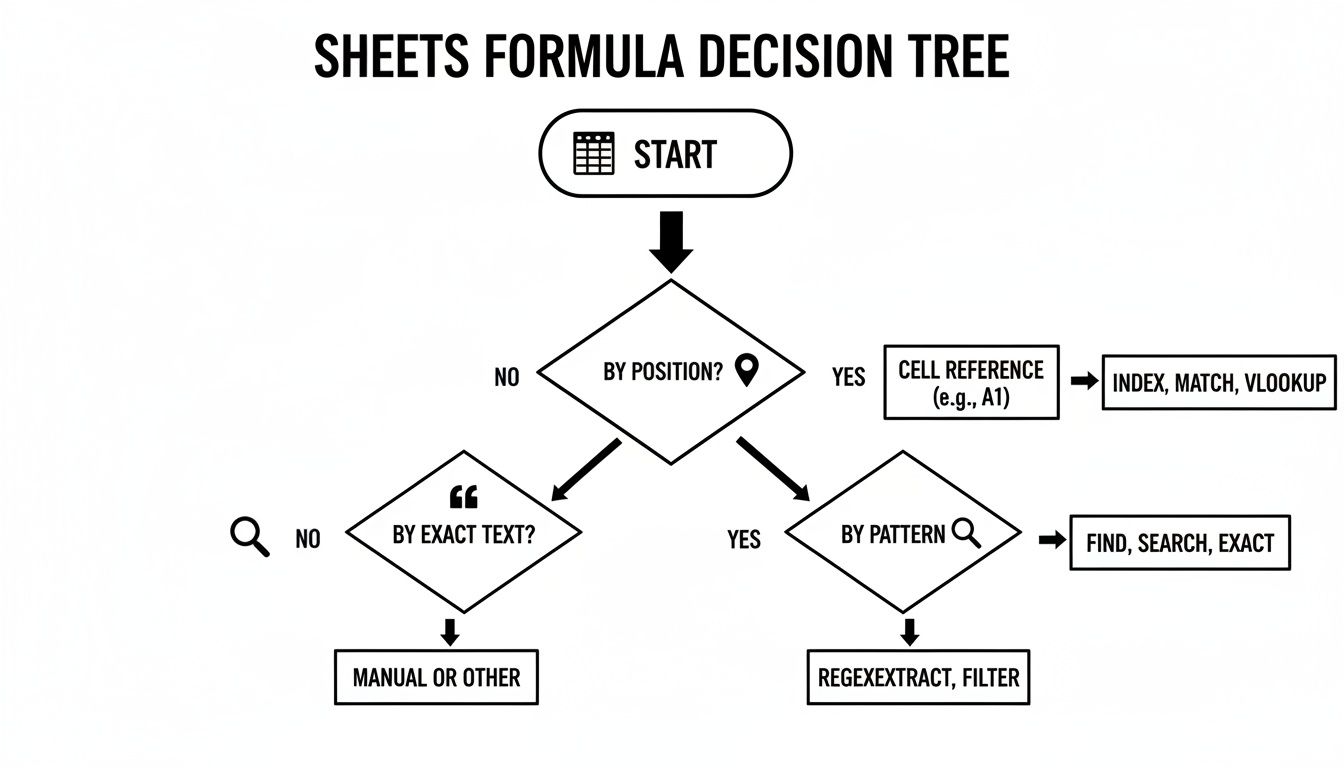 A Google Sheets formula decision tree diagram guiding users to appropriate functions for different data tasks.
It helps you quickly see whether you need a position-based change (REPLACE), a simple text swap (SUBSTITUTE), or something more complex with patterns (REGEXREPLACE).
Using Formulas for Cross-Sheet Consistency
If you need a more dynamic solution that updates automatically, referencing other sheets with formulas is the way to go. A really effective strategy is to build a central "lookup" or "mapping" table on its own sheet. In this table, you just list your old values in one column and their new, correct counterparts in the next.
Then, on all your other sheets, you can use functions like VLOOKUP or INDEX(MATCH) to pull the current, correct values from your master mapping sheet. The beauty of this setup is that you only have to make updates in one place. Change a value on your mapping sheet, and it automatically ripples through the entire workbook. It’s no surprise that the spreadsheet software market is projected to hit $21.8 billion by 2033, driven by powerful, cloud-based features like these that make data management so much smoother. You can explore more Google Sheets statistics here.
This method is fantastic for centralizing your data and ensuring every part of your workbook is working from a single source of truth.
Automating Bulk Changes with Google Apps Script
So, you've hit the ceiling with what formulas and Find and Replace can do. You’re facing a data cleanup task that’s just too big, too repetitive, or too nuanced for the standard tools. This is where you graduate to the big leagues: Google Apps Script.
Think of Apps Script as the powerhouse engine humming right inside your Google Sheet. It’s a scripting platform based on JavaScript that lets you write custom functions to do, well, almost anything. This is how you move from manually using your spreadsheet to programming it to work for you.
Let’s get our hands dirty with a real-world scenario. Imagine you're migrating your company's user data, and you have a column with thousands of email addresses. You need to change every instance of @old-company.com to @new-corp.com. You could use Find and Replace, sure, but what if you also wanted to keep a log of exactly how many records you changed? That’s a perfect job for a simple script.
Your First Replacement Script
First things first, you need to open the script editor. In your Google Sheet, head up to the menu and click Extensions > Apps Script. This opens a new tab with a clean-looking editor, ready for your code. Don't be intimidated if you're not a developer; the logic is surprisingly straightforward.
This is the environment where you'll give Google Sheets its marching orders.
 A laptop screen displays 'Google Apps Script' and 'Automate Replacements' on a white document.
Here's a complete, ready-to-run script that handles our email domain update. Just copy this code and paste it directly into the script editor you just opened.
function updateEmailDomains() { // Get the currently active spreadsheet and the specific sheet named 'Users' const ss = SpreadsheetApp.getActiveSpreadsheet(); const sheet = ss.getSheetByName('Users');
// Define the column to search (Column B, which is the 2nd column) const emailColumn = 2;
// Get all data from the specified sheet const range = sheet.getDataRange(); const values = range.getValues();
// Define what to find and what to replace it with const oldDomain = '@old-company.com'; const newDomain = '@new-corp.com'; let changesMade = 0;
// Loop through each row of the data for (let i = 0; i < values.length; i++) { let cellValue = values[i][emailColumn - 1]; // Adjust for 0-based index
// Check if the cell contains the old domain
if (typeof cellValue === 'string' && cellValue.includes(oldDomain)) {
  // Perform the replacement
  values[i][emailColumn - 1] = cellValue.replace(oldDomain, newDomain);
  changesMade++;
}
}
// Write the updated data back to the sheet range.setValues(values);
// Log how many changes were made for confirmation Logger.log(changesMade + ' email domains updated.'); }
A Quick Tip: My number one rule before running any script that modifies data is to work on a backup. Go to
File > Make a copy. It takes five seconds and can save you from a major headache if you make a mistake. It’s the best insurance policy you’ll ever have.
Running and Authorizing Your Script
With the code pasted in, hit the save icon (the little floppy disk). Now, to make the magic happen, look for the function dropdown menu at the top, make sure updateEmailDomains is selected, and click the Run button.
The very first time you run a script in a sheet, Google will pop up a window asking for your permission. This is a crucial security feature—it’s just confirming you’re okay with the script accessing and changing your data. Go ahead and grant authorization.
Once you do, the script will execute almost instantly. To see the result, you can check the execution log by going to View > Logs. You should see our confirmation message telling you how many emails were updated.
This simple domain swap is just scratching the surface. With Google Apps Script, you can build incredibly powerful workflows to handle any google sheets replace task you can dream up, transforming hours of tedious work into a single click.
Common Mistakes and How to Avoid Them
Even those of us who live in spreadsheets can make a costly mistake with a single misplaced google sheets replace command. One click of "Replace All" can scramble thousands of records, turning what should have been a quick data cleanup into a frantic, heart-pounding recovery mission.
The best way to sidestep these disasters is to know what they look like before they happen.
A classic blunder I see all the time is the partial match problem. Let’s say you want to replace the abbreviation "Inc" with "Incorporated." Without the right setting, you could accidentally change every instance of "including" to "Incorporatedluding" across your entire dataset. This is exactly why the 'Match entire cell contents' option exists—it's your best defense against these kinds of unintended edits.
Another sneaky issue is accidental data type conversion. You might think changing a placeholder like "TBD" to "0" in a sales column is harmless. But if you’re not careful, Sheets might interpret that "0" as text, converting the whole column and breaking every SUM or AVERAGE formula that depends on it. These are silent errors, the kind you don't find until your quarterly report is due.
Your Data Integrity Checklist
Before you hit "Replace all" on a massive dataset, do yourself a favor and run through this quick mental checklist. It’s built on years of fixing my own mistakes and can save you from a world of hurt.
- Always Work on a Copy: First thing, always. Go to
File > Make a copy. This five-second action is the ultimate undo button. - Use Helper Columns for Formulas: When using
SUBSTITUTEorREGEXREPLACE, don't do it directly on your source data. Pop the formula into a new column next to the original. This way, you can see the results side-by-side and make sure everything looks right before you commit. - Get Comfortable with Version History: If disaster does strike,
File > Version history > See version historyis your time machine. You can rewind your sheet to a point just before things went wrong.
The most powerful tool isn't the function itself but the discipline you apply when using it. Double-checking your settings and scope is non-negotiable. It’s the difference between a clean dataset and a corrupted one.
With Google Sheets expected to reach an incredible 1.1 billion users worldwide in 2025, the need for safe data practices has never been more critical. This is especially true for the countless small businesses and startups relying on it for everything. Explore more about Google Sheets' adoption trends and you'll see why getting this right is so important for modern teams.
By keeping these common pitfalls in mind, you can use the platform's powerful replacement features with confidence, not fear.
Got a Question About Replacing Data?
When you're wrestling with a spreadsheet, sometimes you hit a snag that isn't covered in a standard tutorial. Let's tackle some of the most common real-world questions that pop up when you're trying to replace data in Google Sheets. These are the quick fixes that'll get you unstuck and back on track.
How Do I Get Rid of Line Breaks in a Cell?
Ever copy and paste text from an email or a document only to have it show up with weird, invisible line breaks that throw off your cell formatting? It’s a classic problem. The good news is, there's an easy fix, but it involves a little dip into the world of regular expressions.
Fire up the Find and Replace tool (Ctrl+H or Cmd+H).
- In the ‘Find’ box, type
\n. This isn't just a backslash and an 'n'; it's the special code (regex) for a newline character. - In the ‘Replace with’ box, you have two choices. Leave it completely empty to delete the break, or type a single space to separate the joined lines.
- Here's the most important part: You must check the box for 'Search using regular expressions'. If you don't, Sheets will just look for the literal text "\n".
If you'd rather not alter your original data, you can always use a formula in a helper column. Pop =SUBSTITUTE(A1, CHAR(10), " ") into the cell next to your messy data, and it'll do the same job without touching the source.
Help! Can I Undo a "Replace All"?
Yes, you can breathe easy. That heart-stopping moment when you realize "Replace All" just changed way more than you intended is totally reversible.
Your first and best line of defense is the universal undo command: Ctrl+Z (or Cmd+Z on a Mac). If the replacement was the very last thing you did, this will instantly put everything back.
But what if you've done a few things since then? No problem. This is where Google Sheets' version history becomes a lifesaver.
Go to
File > Version history > See version history. You'll see a timeline of every save and change made to your sheet. Just find a version from right before the accidental replacement and restore it. Pro tip: before any massive data cleanup, I always name the current version so it's easy to find my way back.
Does Google Sheets Have Wildcards for Replacing Text?
It does, but with a twist. You can't use traditional wildcards like * on their own. They only work when you enable regular expressions, where their equivalents are even more powerful.
Think of it this way:
- A period (
.) is the regex wildcard for any single character. - An asterisk (
*) matches the preceding character zero or more times. A more useful pattern is.*, which matches any sequence of characters.
Let's say you have product codes like 'prod-A', 'prod-B', and 'prod-C'. If you wanted to find them all, you could search for prod-. in the Find dialog. Just don't forget to check that 'Search using regular expressions' box. Once you get the hang of these simple patterns, you'll be able to perform some seriously complex find and replace operations in no time.
Ready to build mobile apps faster without getting bogged down by boilerplate? AppLighter provides a complete, production-ready starter-kit built on Expo and React Native, so you can focus on your unique features from day one. Ship your MVP in record time with AppLighter.
Related Articles

A Developer's Guide to Google Sheet REGEXMATCH
Unlock the power of Google Sheet REGEXMATCH. This guide offers developers practical examples for data validation, filtering, and text manipulation.

Mastering PayPal Transaction ID Lookup A Practical Guide
A complete guide to the PayPal transaction ID lookup process. Learn how to find and use your transaction ID on the website, app, API, and for handling disputes.

TestFlight on Android: Why testflight on android Isn't Available
Curious about testflight on android? It doesn't exist. Learn best Android-friendly alternatives like Google Play and Firebase for React Native and Expo apps.